Appearance
Create and Edit Configurations
Save equipment, layout and related settings as a draft for validation, export or later application. A draft is separate from the active workstation configuration.
Before you start
Choose an installed configuration profile. It determines the available models and fields and whether application is supported. The AI bridge and desktop must share the same draft store.
With your AI agent
List the available equipment configuration templates and identify any offline-only profiles. Create a draft called “Transfer test” from the selected template. Do not apply it yet.
For an existing draft, ask the agent to read it and its revision before describing changes. Check the new revision after saving. Do not overwrite the latest draft with another user's stale version.
In the interface
- Open System Settings. If rack settings are visible, choose Advanced layout editor.
- Use the Open setup folder control to open a saved configuration, or choose New: … for a supported graphical profile.
- Edit available fields, positions and labware, then choose Save changes.
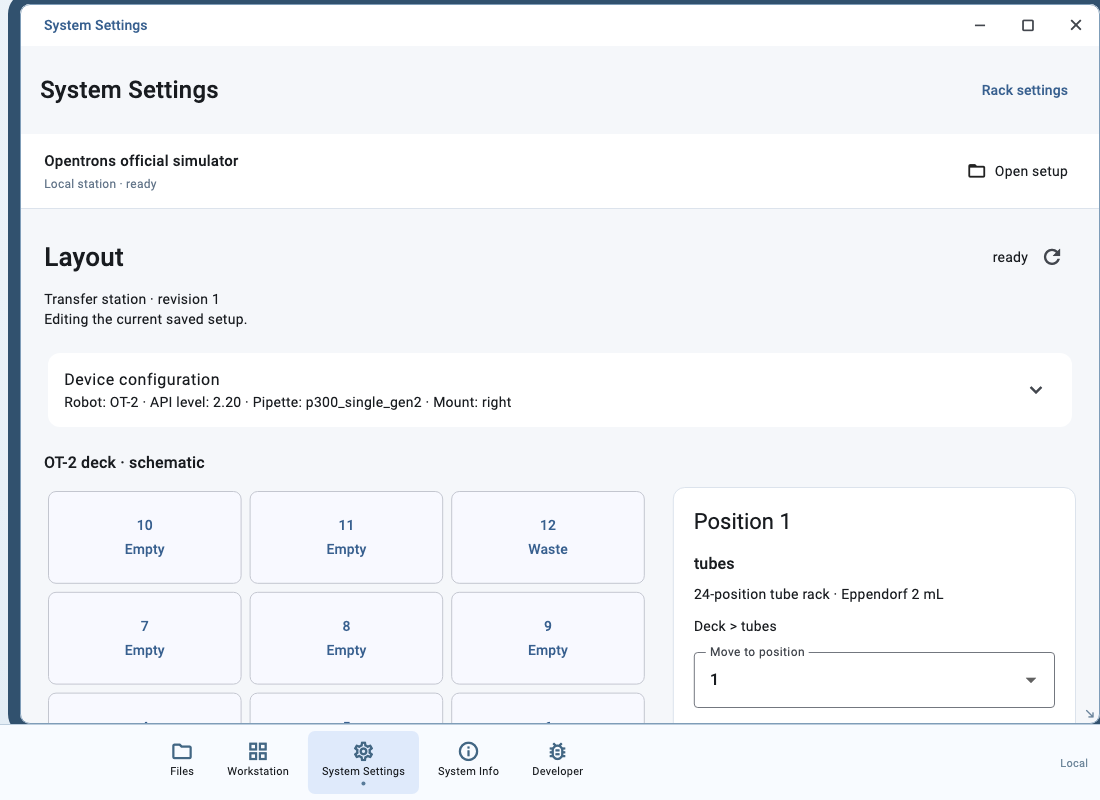
- To discard unsaved edits, choose Discard edits.
The native editor shows the fields and graphical capabilities supplied by the profile. General configuration-field editing, JSON import or export workflows are covered through MCP where supported; see Import and Export.
Check the saved draft
Confirm its title, profile and saved revision. Saving creates a draft revision; it does not apply the configuration. On a revision conflict, read the current version, compare changes and then save.
Next: Validate and Apply.