Appearance
Your First Simulation
Run the bundled transfer.culs example. It moves buffer twice from a source tube containing 200 µL to a destination tube, transferring 50 µL each time.
Before you start
Open the installed App with its default Opentrons simulated workstation, as described in Install and Start. The bundled program is Transfer/transfer.culs. For the AI route, first connect your agent.
The example uses two tubes, a pipette and a tip rack. The source maps to A1 and the destination to A2. Use the supplied files for this first run: editing the source can invalidate container bindings.
Complete one run
With your AI agent
Check first. Ask your agent:
Find transfer.culs and check it against the current workstation. Tell me the source and destination tubes, the two transfer volumes and the required consumables. Do not run it yet.
Confirm that the agent found the correct file, identified two 50 µL transfers and reported whether the configuration is usable.
Then start. After confirming that this is a simulated workstation, ask:
Start one simulation using the program version you just checked. Report its run identifier, follow its status and explain the result when it finishes. Do not start a second run.
The agent should submit the reviewed snapshot and follow the same run. You can also ask it to open that experiment in the desktop.
In the interface
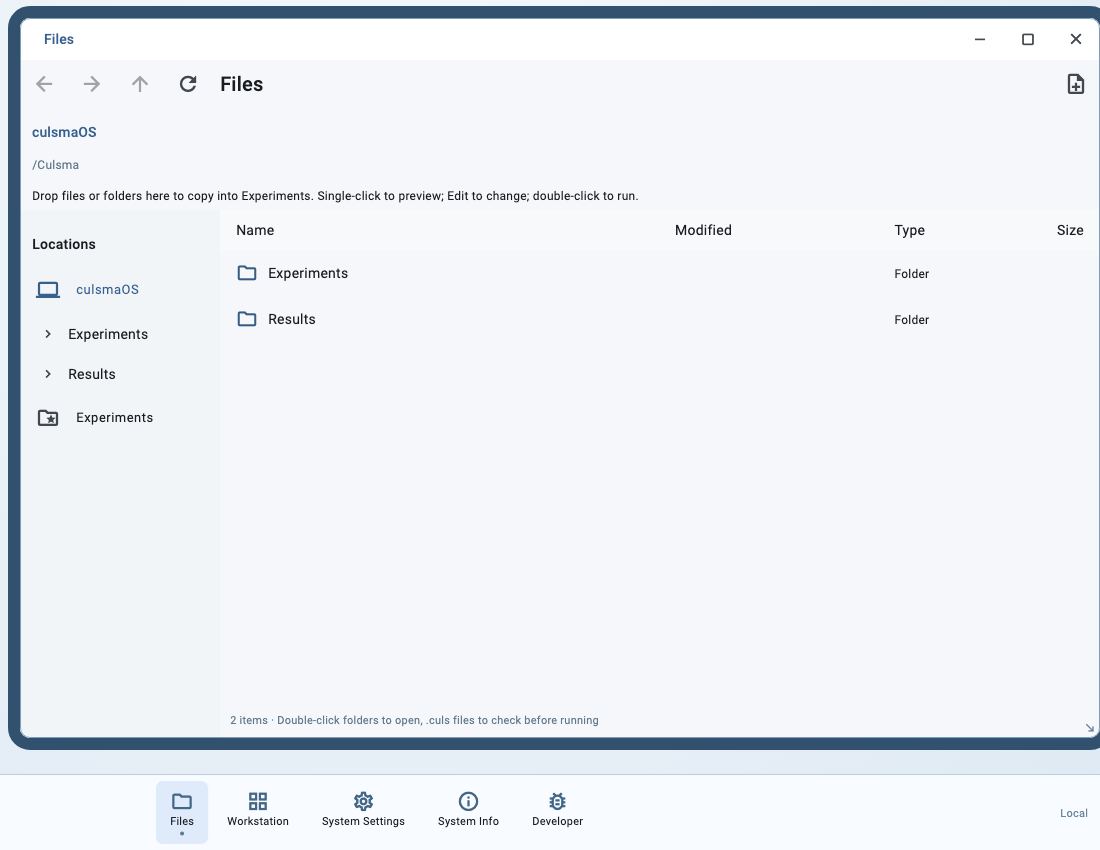
- Open Files → Experiments → Transfer.
- Single-click
transfer.culsto preview its source. Double-click it to check the program and open run review. - Review the source, destination and equipment requirements in the loading preview. No experiment has started yet.
- Select Run simulation.
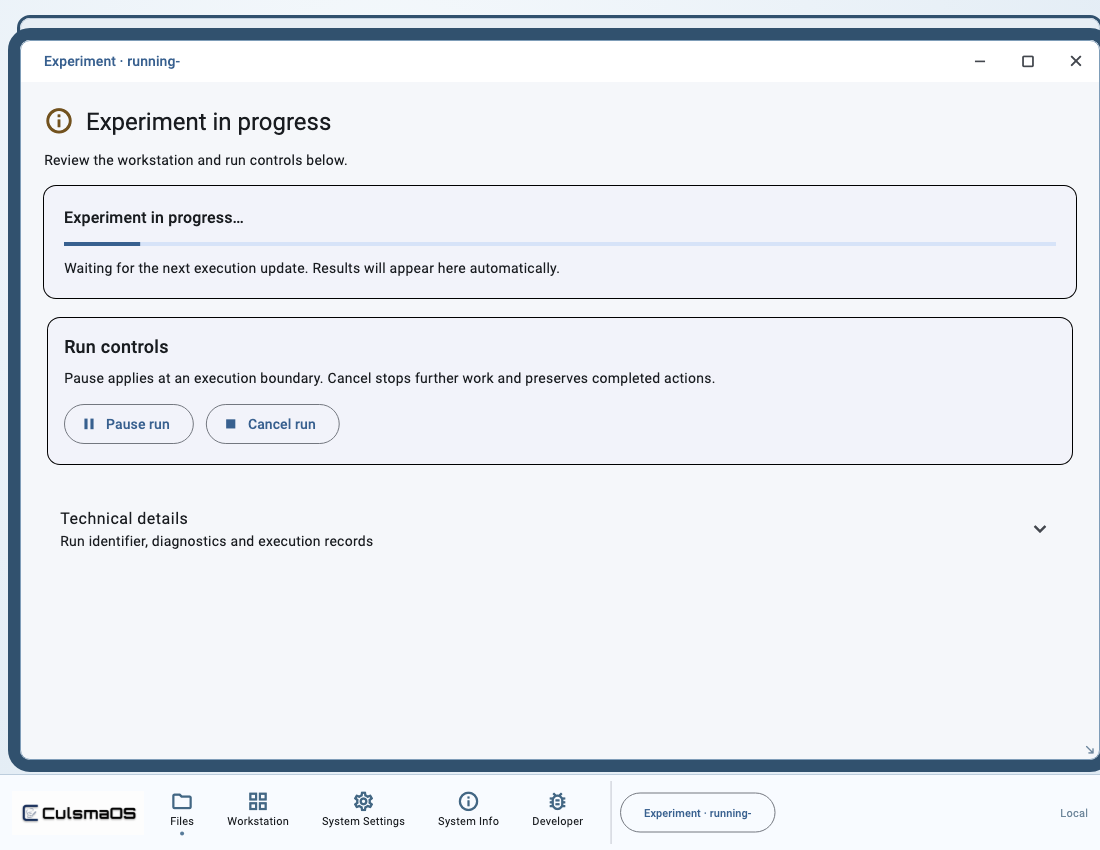
- Follow progress at the top of the experiment window. When it finishes, read the outcome. Expand Technical details if you need the run identifier and recorded status.
If checks fail or the simulation button is unavailable, resolve the issue first. Do not use Run on hardware to bypass it.
Expected result
| Item | Expected simulated outcome |
|---|---|
| Run status | completed |
| Final modeled volume in the source | 100 µL |
| Final modeled volume in the destination | 100 µL |
| Total transferred from the source | 100 µL |
This program has no explicit return, so a missing returned product does not establish failure. The material-use summary is also not a final inventory of every container. Ask the agent to read registered material state, or inspect the available material and technical records for the run.
Before running again
Starting again creates a new experiment record. To inspect the result again, reopen the original run. The desktop Run simulation path starts with a fresh declared load; earlier simulations do not consume that new run's tips or liquids. This does not replenish real supplies or reset the state of a separate persistent CLI station.
Next: Create, Import and Edit Experiments, or Results and History.