Appearance
Check and Preview an Experiment
Check source code and inspect the materials, devices, consumables and positions an experiment requires. A preview does not create a run or reserve resources.
Before you start
Save the intended file and confirm the connected workstation. Passing language checks still leaves device support and current resources to be checked separately.
With your AI agent
Check this experiment and preview its requirements against the current workstation. List materials, devices, consumables, positions and any blocking issues. Do not submit or run it.
The agent should distinguish source diagnostics from workstation preview results. Before execution, it should inspect and freeze the exact source version to be used. Recheck after edits.
In the interface
- In the editor, choose Check and read syntax and semantic diagnostics.
- Double-click the experiment in Files, or choose Run in the editor, to open run review.
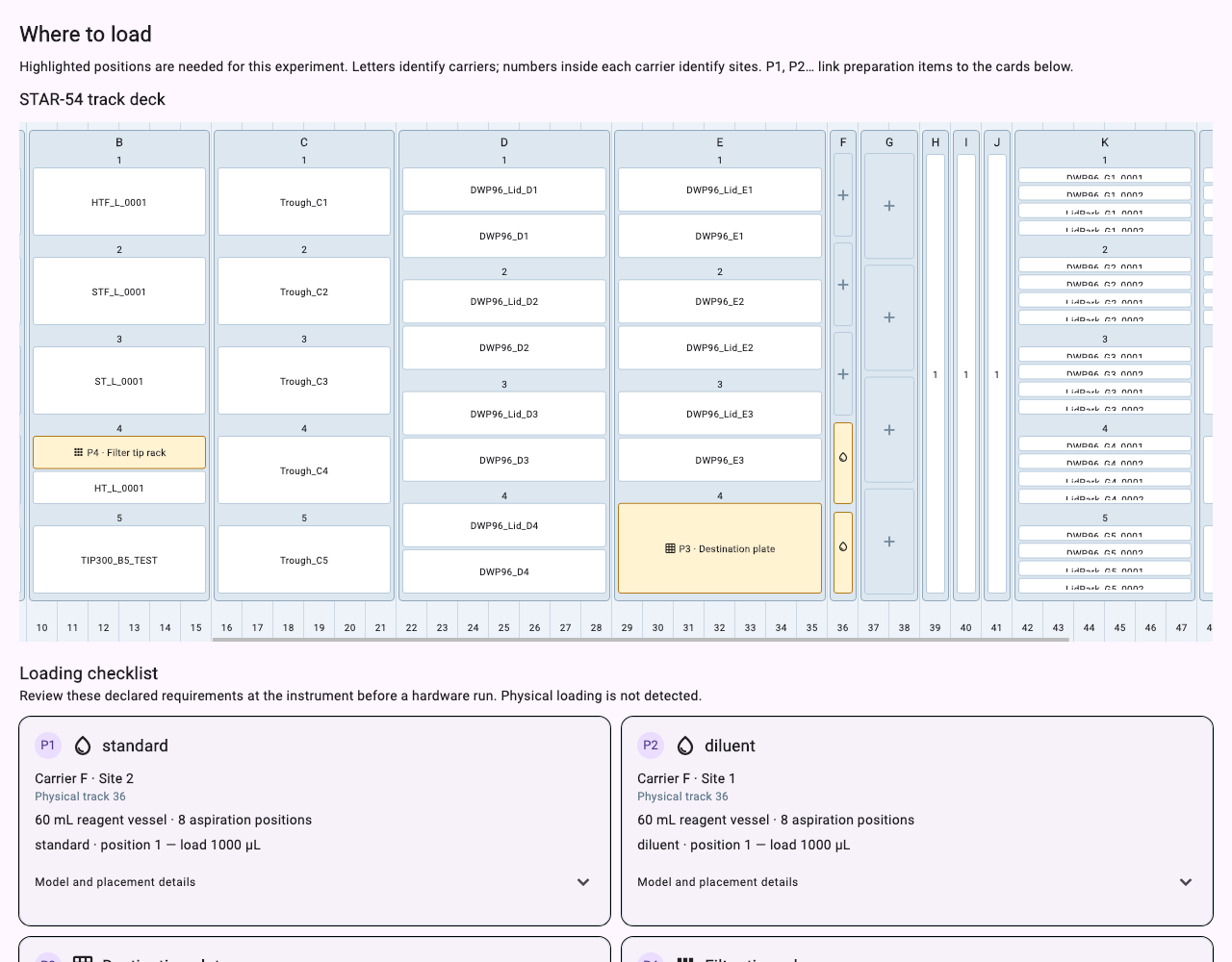
- Review highlighted positions, loading cards and requirement details.
- If checks fail, correct the source or configuration and check again. A visible preview does not mean execution has started.
Interpret the checks
| Result | Meaning |
|---|---|
| Source passes checks | The program can proceed to preparation; it is not a claim that every device supports it. |
| Loading or binding issue | Program containers and workstation configuration do not match. Adjust the relevant configuration or plan. |
| Resources unavailable or reserved | The station cannot currently satisfy the requirements. Inspect resources or the preceding run. |
Preview uses the same instrument preparation policies as execution. Assigned positions do not by themselves mean the program can run: review remaining operation and parameter issues too.
Workstation state can change between preview and launch. The OS checks configuration and resources again before effects.
Next: Prepare a Loading Plan or Start a Simulation.