Appearance
Create, Import and Edit Experiments
Create or modify .culs files in the shared experiment directory. The AI agent and desktop read the same source files, and saves check for revision conflicts.
Before you start
Choose a file name and directory. Read the current version before changing an existing file, and keep original examples you still need. For syntax and experiment semantics, use the Culsma language documentation.
With your AI agent
Read this experiment, save a copy as transfer-review.culs, and clarify only its explanatory comments. Tell me where the copy is saved. Do not run it yet.
When changing an existing file, the agent should read its contents and revision before saving. If there is a revision conflict, ask it to read the latest version and show the differences rather than overwrite newer changes.
For imports, specify the destination subdirectory in Experiments. Your AI client must be able to read the supplied files and call the file-receiving tool. Attaching a file to a conversation does not itself import it into the OS.
In the interface
- In Files, choose New protocol, or select an existing
.culsfile and choose Edit. - Make your changes and choose Save. Use Save As to preserve the original.
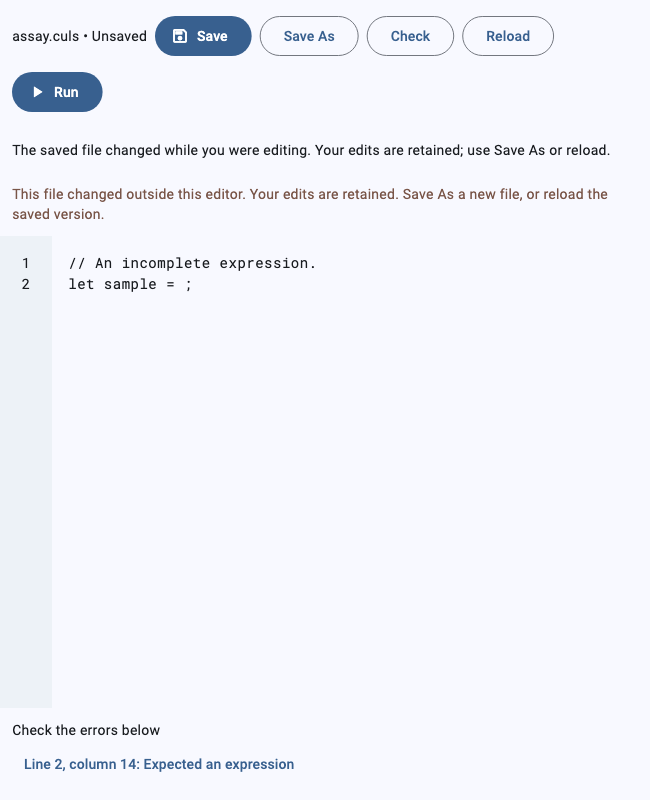
- Choose Check and review diagnostic locations. Run opens experiment checking and preparation.
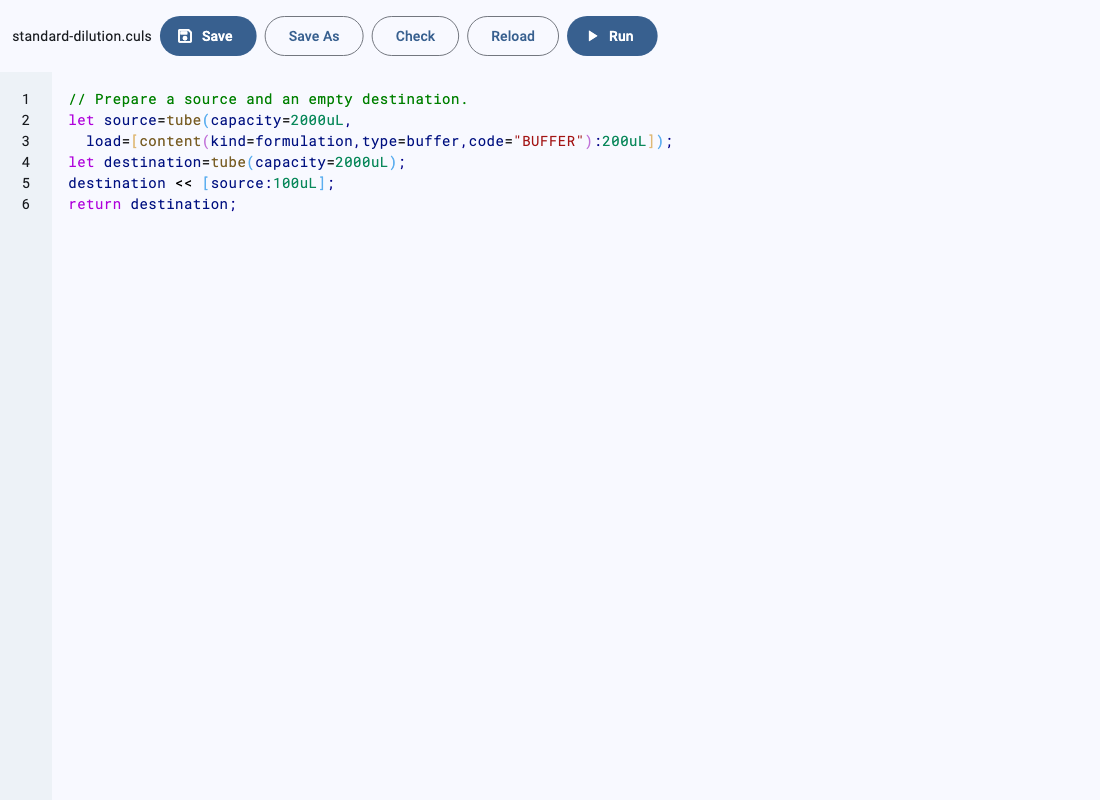
- To import, drag local files or folders into Files. Import copies files and does not overwrite existing names.
Reload reads the file again from disk. With unsaved edits, decide whether to keep editing or discard and reload.
Check the saved or imported files
Read the file again to confirm its location and contents. Native file import currently accepts up to 200 files and 4 MB total per drop. If a path or file type is rejected, adjust or reduce the package as instructed.
Unsaved editor text is different from the file on disk. The AI agent may read the last saved version, so save before handing work over. An already started experiment uses an immutable snapshot and does not change when you edit its source later.
Next: Check and Preview.