Appearance
Desktop and Workspace
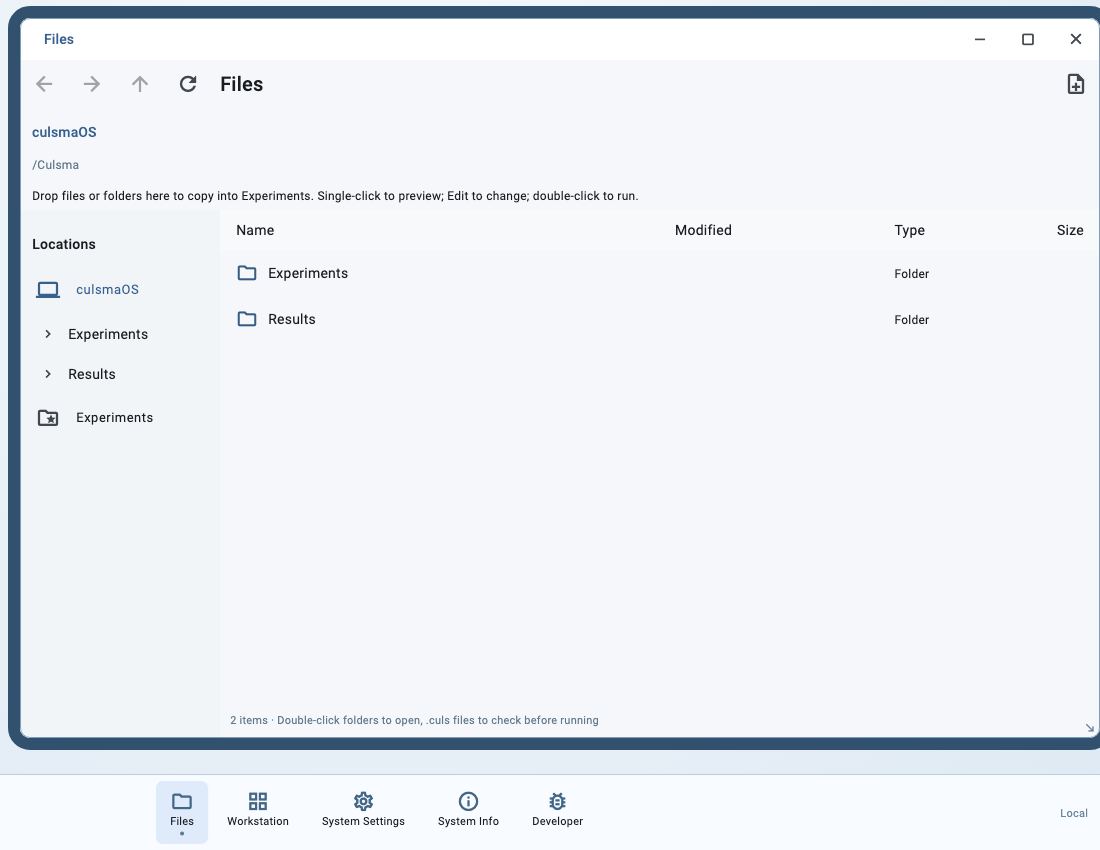
The desktop provides file, experiment, workstation and settings windows. Your AI agent can request an existing view, or you can open it from the workbar.
Main windows
| Window | Purpose |
|---|---|
| Files | Browse user files, preview experiments, and open the editor or run review. |
| Experiment | Review one run's preparation, progress, controls, results and records. |
| Workstation | Inspect the declared layout, container positions and run history; make layout changes supported by the driver. |
| System Settings | Inspect carrier settings, open the advanced layout editor and review the Simulation setting. |
| System Info | Inspect equipment declarations, consumables, resource ownership, drivers and service state. |
| Developer | Use driver-supported detached fault tests. Everyday operation does not require this window. |
Each experiment can have its own window. Moving, minimizing or closing a window does not cancel the experiment.
Open a page
With your AI agent
Open Files in CulsmaOS and show my experiment directory.
The agent finds a live desktop session and requests the view. If the desktop defers the request, resolve unsaved edits before requesting it again. Showing a page and executing an experiment are separate operations.
In the interface
- Choose Files, Workstation or System Settings from the desktop workbar.
- Selecting an already open entry restores its window.
- In Files, use folders, path navigation and the back button to browse.
Where files live
The installed App uses ~/Culsma Preview/projects for Experiments and ~/Culsma Preview/results for Results. Configuration and logs live under ~/Library/Application Support/culsmaOS/preview. Custom CLI installations can use different --home and --program-root paths.
Files shows user content rather than the entire application installation. Hidden files, symbolic links and other restricted items are not opened as ordinary files. Some records live in workstation state storage; do not assume every run automatically creates an exported file under Results.
Next: Find and Open Experiments.